
AI Network Analysis: Analyze 2,000+ names in one afternoon
This week, I needed to find speakers for an upcoming real estate conference. To do it, I used AI Network Analysis to scan 2,000+ connections on LinkedIn across 15+ panels on topics like Data Centers, Affordable Housing, Office Conversions, and Financing & Capital Markets. LinkedIn is an incredibly powerful tool to help solve this problem, but with AI and a little creativity, I built my own engine to take it a step further.
Keep reading to learn more about how I supercharged the process using AI.
We’re excited to feature a new series of guest-authored posts exploring real-world applications of AI in commercial real estate. These articles showcase practical workflows, tools, and strategies that professionals are using today to work smarter with AI.
About the author: Leonard Allen-Smith is the Founder and CEO of Allen Smith Equities. He designs and implements AI-driven workflows across investment and operating processes. With over eight years of experience in acquisitions, development, and fund management, Leonard brings a forward-thinking approach to real estate technology and strategy.
I have thousands of LinkedIn connections. Like most people, it’s hard to recall individual people from a list that big.
LinkedIn is great when you’re searching for a specific person. But what about when you need to find everyone who could speak on affordable housing policy? Or everyone with construction experience? Or everyone with capital markets knowledge?
Instead of painfully navigating through thousands of LinkedIn connections to figure out who does what, and who would be a good fit, I built my own system using AI that:
- Individually evaluated each contact’s seniority (senior enough to be a credible panelist?)
- Matched them to relevant panel topics based on their company and title
- Gave me a queryable list in a Google Spreadsheet which was easy to navigate and visualize
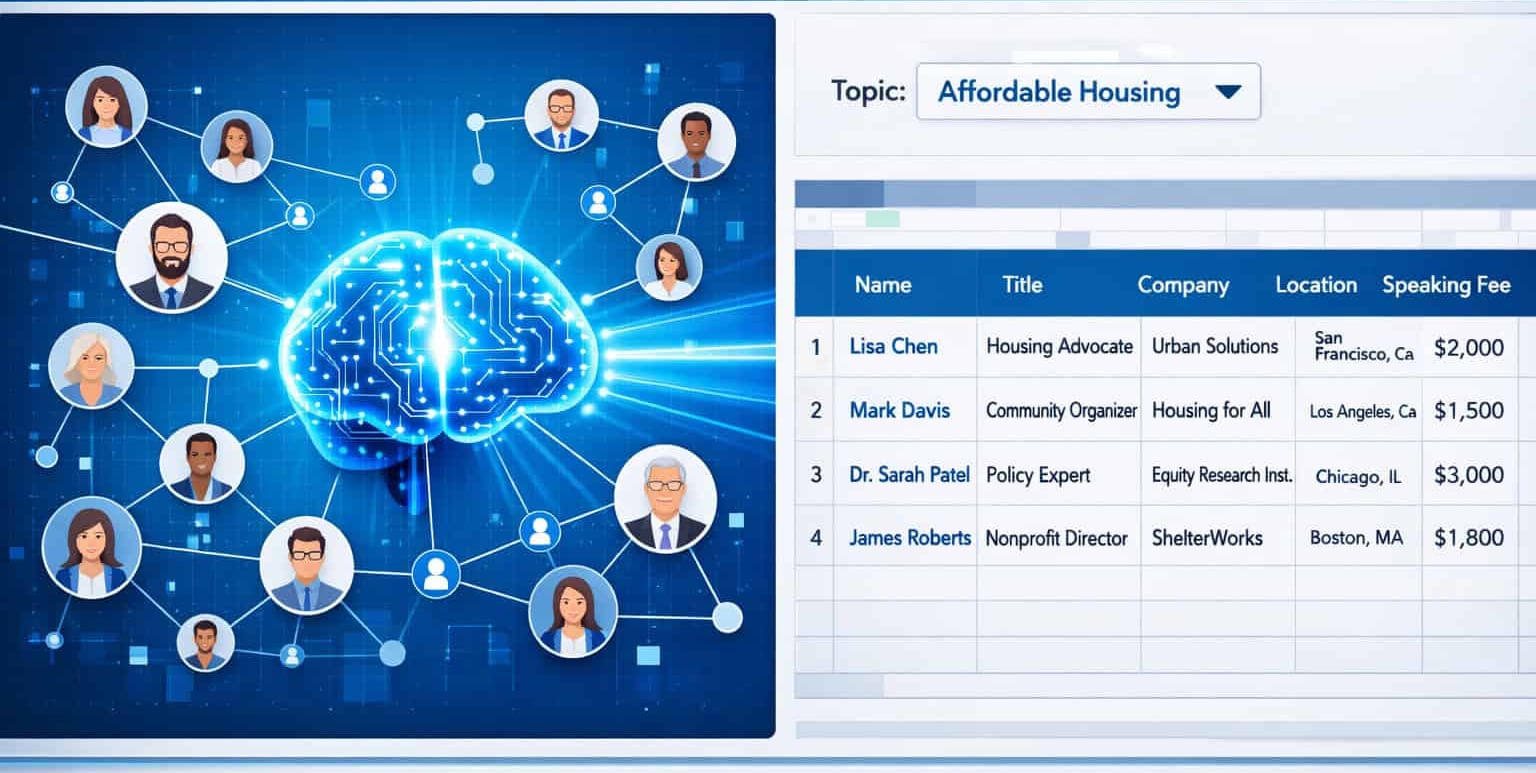
The Result: I select a topic, say, “Affordable Housing”, and instantly see every qualified contact in my network for that topic. Switch to “Data Centers” and the list updates automatically. No searching hundreds of keywords. No manual filtering. No scrolling. Just select and go.
Why should you care? AI did all of the heavy lifting for this project. I didn’t categorize a single contact. The system evaluated 2,000+ people and sorted them for me.
The Return on Time: What would have taken countless days (maybe weeks?) of manual categorization and review took me an afternoon. This is what successful deployment of AI looks like.
How I Built the AI Network Analysis Workflow
First: I used Claude to help me think through the problem
Before touching any data, I thought through the project using Claude (Could have used any preferred LLM here).
Claude helped me draft and iterate on the prompts, troubleshoot formula syntax, and think through edge cases (like contacts with vague titles or obscure companies). It was like having a thought partner for the entire build.
Step 1: Export LinkedIn Contacts for AI Analysis
LinkedIn lets you download your contacts as a CSV file. Go to Settings → Data Privacy → Get a copy of your data → Connections. It takes 2 minutes.
What you get: First Name, Last Name, Company, Title, LinkedIn URL. That’s it. No context about what someone actually does. Limited indication of how they could be helpful — to you or to anyone else in your network.
Step 2: Use AI to Enrich LinkedIn Contact Data
I used Gemini inside Google Sheets to analyze each contact. The formula references the person’s Company and Title, then asks Gemini to infer what they know, who they work with, and what they could help with.
Example prompt structure:
=GEMINI(“You are helping identify potential speakers for a real estate conference.
Based on this person’s company and title, determine:
- Are they likely senior enough to be a credible panelist? (Director level or above, or founder/owner)
- Which conference topics, if any, could they speak on with authority?
Company: [Insert cell reference]
Title: [Insert cell reference]
Conference topics:
– Hospitality
– Emerging Markets
– Law & Public Policy
– Sustainability
– Financing & Capital Markets
– Data Centers
– Affordable Housing
– Future of Office / Office Conversions / Flexible Workspace
– Senior Housing
– Placemaking
– Construction
– Infrastructure
– Missing Middle Housing
– Housing Policy
– Venture Market / Proptech
– DEI in Real Estate
– International / Cross-Cultural Real Estate
Return in this exact format:
Speaker Potential: [Yes/Maybe/No]
Topics: [list matching topics, or ‘None’ if no clear match]
Reasoning: [one sentence explaining why]”)
Gemini can’t browse the internet, but it makes solid inferences from well-known companies and clear titles. “Goldman Sachs +Vice President, Urban Investing Group (UIG)” gives it plenty to work with.
Step 3: Build the dynamic filter to Query Contacts by Topic
I used a FILTER() formula to create a view that updates automatically based on a dropdown selection:
=FILTER(Connections!A4:G, REGEXMATCH(Connections!G4:G, “Speaker Potential: Yes”), REGEXMATCH(Connections!G4:G, A1))
A1 is a dropdown with each panel topic. Select a topic, get a filtered list. Select a different topic, the list updates instantly.
Why Google Sheets Is Ideal for AI Contact Analysis
LinkedIn is powerful, but it’s impossible to manipulate the data. Exporting to a spreadsheet lets you:
- Add custom columns and AI-generated fields
- Build formulas that filter and sort dynamically
- Create views tailored to specific use cases
- Reuse the system for future projects

AI Network Analysis Use Cases Beyond Speaker Selection
You might not need to find conference speakers. But you probably have a version of this problem:
- Recruiting? Find everyone in your network with a specific skill set.
- Fundraising? Surface contacts with LP or family office connections.
- Business development? Identify everyone in a target industry or geography.
- Job searching? Find people at companies you’re targeting who could make introductions.
The specific prompts will be different, but the approach is the same: export your data, enrich it with AI, build a filter.
If you’re not sure where to start, describe the problem to Claude, Gemini or ChatGPT and ask it to help you think through a solution. You don’t need to know the answer before you begin.
Unexpected Results
This exercise revealed more than just potential speakers. It gave me a diagnostic of my entire network. Some panels had dozens of qualified contacts. Others had almost none showing me exactly where there are gaps.
The AI Network Analysis tool I built to solve one problem ended up changing how I think about my network going forward, thanks to having better data and visibility.
What’s Next
This is the first post of many where I’ll share the specific prompts, formulas, and workflows I’m building, mostly in real estate, but applicable to anyone trying to work smarter with AI.
Frequently Asked Questions: AI Network Analysis
What is AI Network Analysis and why does it matter?
AI Network Analysis is the process of using artificial intelligence to automatically evaluate, sort, and tag your LinkedIn connections by role, expertise, and relevance to a given topic. This turns an unstructured list of contacts into a strategic asset for recruiting, event planning, fundraising, and more—saving hours of manual work.
What problem were you trying to solve with this AI project?
I needed to identify credible speakers from my LinkedIn network for a real estate conference with 15+ panel topics. Manually reviewing 2,000+ contacts would have taken days. I used AI to automate the analysis, saving time and improving accuracy.
How did you use AI to evaluate your contacts?
I exported my connections from LinkedIn as a CSV file. Then I used Gemini inside Google Sheets to analyze each person’s company and title. AI inferred their seniority and relevant panel topics using structured prompts and returned consistent output.
What kind of prompt did you use with Gemini?
The prompt asked Gemini to evaluate:
– Whether the person is senior enough to be a panelist
– Which panel topics they could speak on
– A one-sentence rationale
It used the contact’s company and title to guide the response and returned results in a consistent format.
How did you build the dynamic topic filter?
I used the FILTER() and REGEXMATCH() formulas in Google Sheets to create a live view. A dropdown (cell A1) let me select a panel topic, and the list updated instantly to show only qualified contacts for that theme.
Why use Google Sheets instead of LinkedIn or CRM tools?
Spreadsheets offer flexibility:
– Add AI-powered columns
– Build custom filters and views
– Reuse the same system across projects
LinkedIn and most CRM tools don’t allow this level of data enrichment or filtering.
What information did the LinkedIn export provide?
The export includes First Name, Last Name, Company, Title, and LinkedIn URL. Since there’s no direct info about skills or expertise, I used AI to enrich that basic data with inferred speaker relevance and seniority.
Do you need coding skills to build this system?
No coding required. The system uses standard spreadsheet formulas and prompt-based AI tools like Gemini or Claude. If you can structure a spreadsheet and write a clear prompt, you can build this workflow.
Can this be used for things beyond speaker selection?
Yes. You can apply the same method to:
– Recruiting (identify people with specific skills)
– Fundraising (find LP connections)
– Business development (sort contacts by geography or industry)
– Job searching (surface contacts at target companies)
What unexpected insights came from this project?
It revealed strengths and gaps in my network. Some topics had dozens of qualified people; others had none. That visibility helped me rethink how I nurture and grow my LinkedIn connections going forward.
What’s next for this AI-powered workflow?
This is the first in a series. I plan to share more prompts, templates, and workflows for solving real problems using AI—starting in real estate, but useful for anyone working to automate and optimize their network, research, or outreach.