

Excel’s Stale Value Formatting: What It Means and Why It Matters (Updated Aug 2025)
We recently received an email from an A.CRE reader using one of our real estate financial models with a curious question. He explained that many of the cells in his model suddenly had a strikethrough applied to the text. Naturally, he wondered if a macro had altered a setting in the model or if something had broken.
At A.CRE, with nearly a decade of sharing our models hundreds of thousands of times, we’ve seen just about everything. But this one had us stumped. A strikethrough on Excel cells? That wasn’t something we’d ever encountered in any of our models. We assumed there must be a simple explanation — maybe the user had mistaken it for something else. Surely, Excel wouldn’t just apply random strikethroughs to cells.
To get to the bottom of it, we asked him to send a screenshot.
He promptly sent the screenshot, and there it was. A series of cells with their text visibly struck through, as if someone had intentionally crossed them out. This wasn’t a formatting choice made by the user, nor was it linked to any conditional formatting rule we could think of. It was something completely new.
Naturally, we started digging. It didn’t take long before we found our answer. It turns out that Microsoft is rolling out a new Excel feature called “Stale Value Formatting.” And not long after, we started seeing it show up in our own workbooks.
This discovery prompted us to bring it to the attention of the A.CRE community. If you’re using Partial Calculation Mode (previously called “Automatic Except Data Tables”), which we recommend for larger models with data tables, you’re likely to see this new strikethrough appear in your cells. But don’t worry — it’s not an error. It’s an intentional (and arguably helpful) update from Microsoft.
Here’s what you need to know about Stale Value Formatting, what it means when you encounter it, and your options for dealing with it moving forward.
- Learn to use the functions that matter in CRE. Check out our free Definitive Guide to Microsoft Excel for Real Estate.

An example of what the Accelerator member reported seeing.
What is Stale Value Formatting?
Stale Value Formatting is Excel’s way of visually flagging cells that are out-of-date and require recalculation. If you see a strikethrough on a cell’s text, it means Excel is letting you know that the data in that cell is “stale” — in other words, the formula behind it hasn’t been recalculated since an underlying input was changed.
This feature was introduced to solve a common problem in Partial and Manual Calculation modes. If you’ve ever used “Automatic Except Data Tables” mode (something we often recommend for A.CRE models), you know that Excel doesn’t automatically recalculate every linked cell. This speeds up performance, but it also creates uncertainty about which cells are up-to-date and which ones aren’t.
Stale Value Formatting solves this issue by placing a visual indicator (a strikethrough) on cells that may need to be refreshed.
Why Did Microsoft Introduce This Feature?
This update is an evolution of a concept that dates back to the early days of spreadsheet software. Manual Calculation Mode was first introduced in VisiCalc in 1979, six years before Excel even existed. For the last 40+ years, manual calculation mode has functioned the same way: calculations are paused, and users are left to decide when and how to trigger updates.
This method speeds up performance, especially in large models, but it creates a visibility problem: How do you know which cells are “live” and which ones are stale? Prior to this update, there was no easy way to see which cells required a refresh. Users had to rely on gut instinct, repeated presses of F9, or manual review of the logic.
That’s the gap Microsoft set out to close with Stale Value Formatting. This new feature makes it crystal clear which cells are out of date by applying a visible strikethrough to the text in the cell. The result is a more transparent, user-friendly experience for anyone working in Manual Calculation Mode or Partial Calculation Mode.
How Does Stale Value Formatting Work?
Here’s how it all comes together.
When Will You See It?
- Partial Calculation Mode (Automatic Except Data Tables): If you’re an A.CRE model user, this is where you’re most likely to see it. Since we use Partial Calculation Mode (formerly Automatic Except Data Tables) on any model that includes Data Tables, stale value strikethroughs will appear when inputs tied to a data table change but the table itself hasn’t been recalculated.
- Manual Calculation Mode: If you’ve set Excel to Manual Calculation (where nothing updates unless you press F9), you’ll encounter stale value strikethroughs more frequently. Cells that depend on updated inputs will remain stale until recalculation is triggered.
What Triggers It?
- When Input Data Changes: Updating an input that affects downstream formulas (like rent assumptions in the Operating Cash Flow section of a model) without recalculating causes Excel to flag the affected cells with a strikethrough.
- When Data Tables are Paused: In Partial mode, Excel doesn’t refresh data tables automatically. As a result, formulas dependent on those data tables may become stale.
How Does Excel Tell You?
- Strikethrough Text (i.e.
strikethrough text): This is the most visible sign. If a cell is stale, the text inside it is crossed out, just like applying a strikethrough in a Word document. - Warning Icon: If you click on a stale cell, you’ll see a small warning icon next to it. Click on it, and you’ll see options to:
- Trigger a recalculation of the cell.
- Switch the calculation mode to Automatic.
What Should You Do When You See the Strikethrough?
The good news is there’s nothing to panic about. Seeing the strikethrough is just Excel’s way of saying, “Hey, this cell is out of date — do you want to refresh it?”
3 Ways to Refresh the Values
- Press F9: This recalculates the active worksheet.
- Shift + F9: This recalculates the active worksheet, but only for cells that have changed.
- Ctrl + Alt + F9: This forces Excel to recalculate all cells in the entire workbook, regardless of what changed.
You can also click the “Calculate Now” button on the Excel Ribbon (under the Formulas tab).
If you’d prefer to avoid manual refreshes, you can switch the calculation setting back to Automatic. However, keep in mind that Partial Calculation (previously known as Automatic Except Data Tables) exists for a reason — it significantly improves performance in models with data tables.
Switching to Automatic Calculation in a workbook with data tables means those data tables will update every time a cell is changed. Depending on the size and number of data tables in the model, this can cause noticeable slowdowns and disruptions.
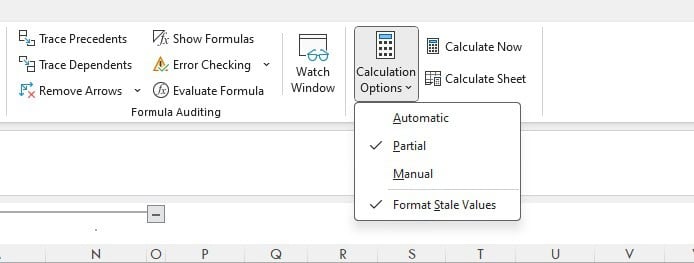
Change Calculation Options, Calculate Now, and/or Disable and Enable Stale Value Formatting from the Formulas ribbon
How to Turn Off Stale Value Formatting (If You Must)
For years, we’ve all lived just fine without this feature. So, it’s understandable if you’d rather not be bothered by strikethroughs appearing in your models. I personally plan to leave it on, but if you prefer a cleaner look, you can turn off the strikethrough indicator entirely by following these steps:
- Go to the Formulas tab on the Ribbon.
- Select Calculation Options.
- Uncheck the box for Format Stale Values.
Once disabled, the strikethroughs will no longer appear. However, keep in mind that this doesn’t change the actual status of stale cells. Those cells may still be out of date — you just won’t see any visual indicator.
To avoid potential issues, it’s a good idea to press F9 from time to time to ensure your cells are up to date, especially when working in Manual Calculation modes.
How Does This Impact A.CRE Models?
If you use A.CRE models, you’re going to see the Stale Value Formatting feature from time to time. Why? Because we generally switch Excel to Partial Calculation Mode when using data tables to improve performance.
When you use an A.CRE Model that has been changed to Partial Calculation Mode, any formula affected by a data table change won’t update automatically. That’s the whole point of this setting. It’s what keeps complex models running fast. But with the introduction of Stale Value Formatting, you’ll start seeing the strikethrough on certain cells in A.CRE models.
Here’s what it means:
- It’s not a bug.
- It’s not a mistake in the model.
- It’s not a calculation error.
It’s simply Excel’s way of letting you know that some cells are due for a recalculation. To remove the strikethrough, press F9 or Shift + F9, and you’re back to normal.
Closing Thoughts
Excel’s new Stale Value Formatting is one of those updates that at first feels like a nuisance — but once you understand it, you see its value. It gives clarity and transparency to which cells are truly “live” and which ones are waiting on recalculation.
If you’re working with A.CRE models, you’ll see these strikethroughs from time to time. They’re not errors. They’re just Excel’s way of saying, “This data is a little old, do you want to refresh it?”
Our advice?
- Stick with Partial (“Automatic Except Data Tables”) mode for best performance.
- Use F9, Shift + F9, or Ctrl + Alt + F9 to refresh your models.
- Keep Stale Value Formatting enabled. It’s a useful visual cue to ensure your data is always fresh.
Happy modeling!
Frequently Asked Questions about Excel’s Stale Value Formatting
What is Stale Value Formatting in Excel?
Stale Value Formatting is a new Excel feature that applies a strikethrough to text in cells that are out-of-date and need recalculation. “If you see a strikethrough on a cell’s text, it means Excel is letting you know that the data in that cell is ‘stale’.”
Why did Microsoft introduce this feature?
To provide a clear visual indicator in Manual and Partial Calculation Modes of which cells are no longer current. “This new feature makes it crystal clear which cells are out of date by applying a visible strikethrough to the text in the cell.”
When will I see stale value strikethroughs in my workbook?
Primarily when using:
Partial Calculation Mode (Automatic Except Data Tables), or
Manual Calculation Mode
“If you’re an A.CRE model user… stale value strikethroughs will appear when inputs tied to a data table change but the table itself hasn’t been recalculated.”
How can I refresh cells marked with strikethrough formatting?
You can refresh stale values by:
Pressing F9 (recalculates the entire workbook)
Pressing Shift + F9 (recalculates active worksheet only)
Pressing Ctrl + Alt + F9 (forces full recalculation)
Clicking “Calculate Now” on the Formulas tab
Can I turn off Stale Value Formatting?
Yes. Go to the Formulas tab > Calculation Options > Uncheck “Format Stale Values”. “However… this doesn’t change the actual status of stale cells. Those cells may still be out of date — you just won’t see any visual indicator.”
How does this feature affect A.CRE models specifically?
You’ll see stale value strikethroughs in A.CRE models because they often run in Partial Calculation Mode to improve performance. “It’s not a bug… It’s simply Excel’s way of letting you know that some cells are due for a recalculation.”
What causes Excel to flag a value as stale?
A cell becomes stale when:
Input data it depends on has changed, and
You haven’t recalculated yet in Manual or Partial Calculation Mode.
“Updating an input… without recalculating causes Excel to flag the affected cells.”
How do I identify a stale cell besides the strikethrough?
You’ll see a small warning icon next to the cell. Clicking it provides options like:
Recalculating the cell
Switching calculation mode to Automatic
Should I disable Stale Value Formatting for better usability?
Not recommended. “It gives clarity and transparency to which cells are truly ‘live’ and which ones are waiting on recalculation.” It’s best to keep it enabled and use F9/Shift+F9 as needed.