
Setting Up Your First OpenClaw for Commercial Real Estate Professionals
Back in 2022, when most of the commercial real estate industry had never heard of ChatGPT, we started writing about it. Since then, we’ve published hundreds of pieces of AI content and built AI.Edge, the largest community of CRE professionals leaning into AI.
At the time, it felt early and experimental, and it was not clear how it would change day-to-day work.
What became clear over the ensuing years is that AI would become a technical skill as important as real estate financial modeling, if not more.
That has always been our focus at A.CRE, equipping you with the technical skills and know-how to succeed. We started with financial modeling. AI is a natural extension of that mission.
So where does this post fit?
If chat-based AI was phase one, autonomous AI has the potential to be phase two.
Enter OpenClaw. One of the first widely adopted platforms that makes this possible, it allows you to create an always-on AI agent in the cloud that works on your behalf.
It is also one of the fastest-growing open-source projects in history. Its early adoption, initially among more technical users, signals a shift toward autonomous AI agents.
In this tutorial, I will walk you through setting up your first OpenClaw instance.
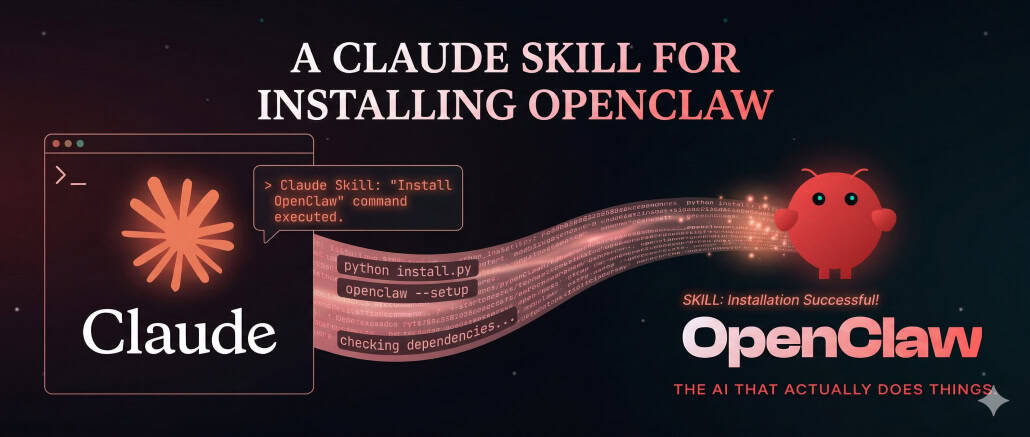
To make the process easier, you’ll use Claude Code. But Claude Code still needs an instruction manual, so I wrote a 5,000-word Claude Skill for you to install that guides it through the heavy lifting, helping commercial real estate professionals get set up without deep technical expertise.
What is OpenClaw?
Originally called Clawdbot, then Moltbot, and now OpenClaw. OpenClaw is an open-source platform for building autonomous AI agents, systems that go beyond answering questions and can take action on your behalf.
Traditional AI tools are reactive. You ask, they respond. OpenClaw represents a shift toward agents that can execute tasks, make decisions, and operate with some level of independence based on the instructions and environment you give them.
This shift is getting a lot of attention. Nvidia CEO Jensen Huang recently described OpenClaw as “the next ChatGPT,” pointing to a broader transition from AI that assists to AI that acts.
For CRE professionals, that opens up a lot of interesting possibilities. You are no longer limited to asking one-off questions. You can build an agent designed around your role, your processes, and your information needs.
- Important: This tutorial involves deploying a self-hosted AI agent with access to external services, which can introduce security, privacy, and cost risks if misconfigured, so use a dedicated environment, limit permissions, and proceed with care.
What You’ll Need
1. Paid Claude Account with Claude Code Enabled
Claude Code will do most of the heavy lifting in this process. Rather than manually entering terminal commands, writing code, or configuring a cloud server from scratch, Claude Code will write the code, configure the server, upgrade/update the AI agent, etc.
Think of Claude Code as your software developer and server expert – while you are the subject matter expert who tells Claude Code what you want for your AI agent.
You’ll need a paid Claude account with Claude Code enabled. Personally, I use Claude Code from the desktop app: download it here.
2. An Amazon AWS Account
You’ll use AWS EC2 to host your OpenClaw agent in the cloud. This gives your agent a “home in the cloud”, or put in technical terms, a persistent machine to run on 24/7.
Expect the monthly cost to be modest, depending on the server size you choose. For many first-time users, this is in the ballpark of roughly Free to $50 per month.
3. An OpenRouter Account
OpenRouter gives you access to a wide range of AI models through a single API key. This makes it easy to experiment with different models without rebuilding your setup.
Alternatively, you can use your own LLM provider’s api key such as OpenAI, Anthropic, Google, etc. I prefer OpenRouter because it gives me access to virtually every model available.
4. Telegram on Your Phone
For this tutorial, Telegram (Apple iOS, Android) will serve as the communication layer between you and your agent. Once setup is complete, you’ll be able to chat with your AI assistant from your phone.
Note that OpenClaw offers other communication methods (e.g. WhatsApp), and you can always have Claude Code help you setup others such as Slack or even your own website where you talk to your AI Agent.
5. Your OpenClaw Setup Claude Skill
To make this incredibly simple for you, I wrote a 5,000+ word Claude Skill that tells Claude Code how to help you – the non-technical commercial real estate professional – how to guide and help you.
Simply download the Skill through the same way you download A.CRE models (download link below), and add the Skill to Claude. Not sure how to add a Skill, just add Claude!
In my case, I built this workflow from a Skill Drop written for ai.edge. The idea is simple: give the setup instructions to Claude Code and let it walk you through the process.
- Unsure what a Claude Skill is or how to use it? Check out our Practical Guide to Claude Skills.
DOWNLOAD THE OPENCLAW SETUP CLAUDE SKILL
To make this Claude Skill accessible to everyone, it is offered on a “Pay What You’re Able” basis with no minimum (enter $0 if you’d like) or maximum (your support helps keep the content coming). Just enter a price together with an email address to send the download link to, and then click ‘Continue’. If you have any questions about our “Pay What You’re Able” program or why we offer our models on this basis, please reach out to either Mike or Spencer.
We regularly update the Skill (see version notes). Paid contributors to the Skill receive a new download link via email each time the model is updated.
The Big Idea, Let Claude Code Drive
The most important mindset shift in this process is this: you do not need to be the one writing code or setting up the technical systems.
Claude Code is your coding and technical partner while your role is to make decisions, review what it is doing, and provide inputs when needed.
Before you begin, install the Claude Skill you downloaded above (learn how to install Claude Skills here). Then, open Claude Code and say something like:
I want to set up an OpenClaw agent on AWS EC2. Use the OpenClaw Skill to walk me through it step by step.
From there, Claude Code will help you launch the AWS cloud server, connect securely to it, install OpenClaw, configure model access, connect Telegram, create your agent identity files, and troubleshoot issues that come up during setup.
Claude Code will also help you modify your agent beyond setup. For instance, as you get more comfortable your agent, Claude Code will help you give it new tools (e.g. access to the internet, connect it to Census data) or fix it when it’s not responding.
Step 1: Launch a Cloud Server on AWS EC2
Your agent needs a machine to live on. AWS EC2 gives you a virtual server running in Amazon’s cloud.
A good starting configuration is Ubuntu Server 24.04 LTS, a t3.medium, 30 GB SSD storage, and SSH access restricted to your IP address.
During this process, AWS will generate an SSH key file, typically a .pem file, that allows secure access to the server.
This file matters.
Save it in a secure local folder on your computer and do NOT place it in a cloud-synced folder like Dropbox, iCloud, or Google Drive.
Once saved locally, find the path of the file (on PC, right-click on the file and click ‘Copy Path’) and give that path to Claude Code.
It will use the file as a “key” to connect to your instance and perform its work of installing and setting up your OpenClaw.
Step 2: Connect OpenRouter to Give Your Agent a Brain
Your OpenClaw instance needs access to an AI model.
Using OpenRouter is a practical choice because it gives you one API key that works with many different model providers.
Once you create an OpenRouter account and fund it with a small amount of credit, Claude Code can help you plug that API key into your OpenClaw configuration.
For a starting model, you might choose something fast and affordable for agent-style tasks (e.g. I’m using Grok 4.1 Fast). You can browse all available models here.
The capability of the models is changing fast (I’ll likely have switched away from Grok 4.1 Fast before you’ve read this tutorial!), so OpenRouter is nice. As models improve, you can switch quickly – just find the new model you want to use on OpenRouter and tell Claude Code to switch your model.
Step 3: Connect Telegram So You Can Talk to the Agent
With the server and model in place, the next step is to give the agent a communication channel.
Telegram (Apple iOS, Android) is one of the easiest and more secure ways to do that.
You will create a Telegram bot using @BotFather, copy the bot token, and give it to Claude Code to add to your OpenClaw configuration. After pairing the bot with your server, you can begin chatting with your agent directly from your phone.
This is where the setup starts to feel real.
Once connected, your AI assistant is no longer something you access only when sitting at your laptop. It becomes something you can interact with anywhere.
And it’s not always you chatting with it, like ChatGPT. Depending on its objectives, it now has a way to message you.
Step 4: Define the Agent’s Identity
One of the more interesting aspects of OpenClaw is that your agent’s behavior can be shaped using plain-text files.
- SOUL.md. This defines who the agent is, how it communicates, what values or boundaries it should follow, and how it should behave.
- USER.md. This defines who you are, your role, your context, your timezone, and your working preferences.
- AGENTS.md. This provides operational rules, defaults, and guidance for how the system should run.
These are all files that Claude Code modifies, but you tell Claude what you want them to say.
For CRE professionals, this is where the setup becomes highly practical.
You can define an agent that communicates in a concise, professional way. You can tell it your market focus, what property types you work on, how you prefer summaries, what tasks you want it to perform, what tools to use, and what not to do.
Simply tell Claude Code how you want your agent to work, and it will help you configure it to work that way.
Step 5: Start Simple, Then Expand Carefully
OpenClaw becomes more powerful as you give it access to more tools and it learns from you.
That can include web search, file access, APIs, calendar integrations, email workflows, and scheduled tasks.
But more access also means more security/privacy risk.
My suggestion is to start with a narrow first use case. Get comfortable with the system. Understand how it behaves and the security risks. Then expand gradually.
For example, a good first version for a CRE professional might simply be chat via Telegram, answering questions about your work context, summarizing notes or research, and helping structure recurring tasks.
Once that is working well, then consider more advanced use cases where it moves beyond just being another chatbot.
A Simple but Powerful Next Step, Give It Access to the Census API
Once you have your first OpenClaw instance running, one simple, useful, and safe next step from a learning perspective for CRE is to connect it to an external data source like the US Census API.
Ask Claude Code to help you give your OpenClaw agent access to the Census API. Claude Code can tell you where to get a Census API key and walk you through the setup from there.
That is where this starts to become especially compelling for CRE. You are no longer just chatting with a generic model. You are building an agent that can interact with real datasets relevant to the way you work.
A Few Important Guardrails
- Review any skill or plugin before installing it. Do not blindly install tools you have not vetted.
- Set spending limits. Set limits on AWS, OpenRouter, and any external services you connect.
- Check logs and behavior regularly. Especially in the early days, review what the agent is doing and how it is using tools.
- Keep services locked down. Do not expose dashboards or services publicly unless you fully understand the security implications. This is still infrastructure. Treat it that way.
Final Thoughts
Think of this as an experiment, a first step toward understanding this next phase of AI.
It’s not perfect yet, far from it. And you might come away from your first OpenClaw experience going, this thing is dumber than Claude!
And it probably will be. But I hope the experience opens your eyes to what is possible when an AI does more than just respond to your prompts, but begins acting autonomously on your behalf.
Frequently Asked Questions about Setting Up Your First OpenClaw for Commercial Real Estate Professionals
Version Notes
v1.0
- Initial Release