

A practical guide to Claude Skills on desktop and web
If you use Claude often, Claude Skills are how you teach it to work the way you do, without repeating yourself every time. Instead of pasting long instructions in every new chat, you write down your process once as a reusable Skill, save it, and then call that behavior with a short, natural request whenever you need it.
When I first wrote this guide, I described Skills as a Claude feature. They’ve quietly become something bigger. The format Skills are built on — now called Agent Skills (or AI Skills) — was released by Anthropic as an open standard, and a growing list of AI tools have adopted it: ChatGPT, Cursor, CRE Agents, GitHub Copilot, Google’s Gemini CLI, OpenAI’s Codex, Claude Code, and dozens more. In plain terms, that means a Skill you write today isn’t locked to one chat window or even one company’s product. It’s a small, portable file you own and that changes how worthwhile it is to build a few good ones.
Think of a Skill as a small written playbook that Claude follows step by step. It can be as simple as “Act as my marketing team” or as specific as “Underwrite a 150‑unit multifamily deal in my format.” Once you install that Skill, Claude quietly references it in the background any time your request matches what the Skill is meant to handle, whether you are in a normal chat, a co‑work session, or using Claude’s code features.
Below is a practical, non‑developer guide to what a Skill actually is, how it works under the hood, and how to install, create, and use Skills effectively.
What Claude Skills Are (And Why They Matter)
A Claude Skill is a saved set of instructions that encodes your process, standards, and preferences so Claude can run them on demand.
Instead of:
- Re‑explaining your brand voice every time you write a newsletter
- Re‑pasting your entire underwriting checklist before every modeling task
- Re‑teaching Claude how you write investor updates every quarter
You capture that once as a Skill and reuse it.
Some examples of what a Skill might do:
- “Write my weekly investor update in this structure and tone”
- “Review contracts using my redlining checklist”
- “Create my Monday project status report from this template”
- “Help me prospect new tenants using this exact research workflow”
Why this matters in practice:
- Consistency: You get the same level of quality each time instead of reinventing the process.
- Speed: You stop burning time copying instructions between chats.
- Scale: You can hand your workflow to Claude and let it run across more of your work.
- Focus: You spend more time reviewing results and less time teaching the tool.
If you already have “a way you like things done,” a Skill is how you turn that into something Claude can apply automatically.
What’s Actually Inside a Skill
Here is the part that surprises most people: a Skill is just a folder with a single text file in it. That file is called SKILL.md, and it has two parts.
At the top is a small block of metadata — at minimum a name and a description. The name is a short label written in lowercase with hyphens instead of spaces (think investor-update or multifamily-underwriting). The description is the one that really matters: a plain‑English sentence or two telling the AI what the Skill does and when to use it. I’ll explain why that’s so important in the next section.
Below the metadata is the body — your actual instructions, written in plain text. There are no special commands or syntax to learn. You write the steps the way you’d explain them to a sharp new analyst on their first day.
That is the entire requirement: a folder, one file, a name, a description, and your instructions. If a workflow needs more than words — a spreadsheet template, a reference document, a script — the folder can carry those supporting files alongside SKILL.md:
multifamily-underwriting/
├── SKILL.md          # Required: the name, description, and instructions
├── scripts/          # Optional: code Claude can run
├── references/       # Optional: checklists, standards, documentation
└── assets/           # Optional: templates, lookup tables, examples
And a minimal SKILL.md can be as short as this:
---
name: investor-update
description: Drafts my quarterly investor update in my voice and
  structure. Use when I provide raw deal notes and ask for the
  investor letter.
---

Write the update in three sections: Portfolio Highlights,
Financial Summary, and What's Next...
That’s it. Everything else — the scripts, the templates, the long reference files — is optional and only there if your workflow genuinely needs it.
How Skills Actually Work
You might wonder how Claude juggles a whole library of Skills without getting confused or bogged down. The answer is a tidy mechanism called progressive disclosure, and it works in three stages:
- Discovery. At the start, Claude reads only the name and description of every Skill you have installed — just enough to know each one exists and roughly what it’s for.
- Activation. When your request matches a Skill’s description, Claude pulls in the full instructions and reads them.
- Execution. Claude follows the steps, opening any bundled files (templates, references, scripts) only when it actually needs them.
This is why the description does so much of the heavy lifting. It’s the matchmaker between what you type and which Skill fires. If your description is vague — “helps with reports” — Claude may not recognize the right moment to use it. If it’s specific — “Use when drafting the weekly investor update from raw deal notes” — it triggers at exactly the right time and stays out of the way otherwise.
It’s also why you can install a dozen Skills without slowing Claude down. Until a Skill is actually needed, all Claude is holding in mind is that one‑line description.
Why It Matters That Skills Are Open
The original version of Skills lived inside Claude. Today the format is an open standard, which has one very practical consequence for you: the Skill you build is not a bet on a single vendor.
The same SKILL.md that runs your underwriting workflow in Claude can be picked up by other agents that support the standard. For a CRE professional, that’s the difference between learning a tool’s settings menu and building a durable asset. Your best thinking — your underwriting checklist, your investor‑letter format, your research workflow — becomes a portable file you carry with you, not something trapped in one app’s account.
A Few Skills Worth Building in CRE
It helps to make this concrete. The examples earlier — investor updates, brand voice — are deliberately simple. In practice, the Skills that earn their keep tend to encode the gnarly, judgment-heavy work you’d normally hand to an analyst. A few that I’ve built or seen work well:
- Underwrite a deal with one of your financial models. Pair a Skill with an Excel model and the AI learns every input cell, every output, and the methodology behind it — then populates the model from a T-12, rent roll, or offering memorandum you hand it. We’ve done exactly this across the A.CRE library, including our Apartment Acquisition Model and our Ground Lease Valuation Model.
- Redline NDAs quickly and at scale. Encode your standard positions, fallback language, and the clauses you always push back on, and the Skill marks up a new NDA the same way your counsel would — in seconds, on the tenth one as carefully as the first.
- Produce offering memorandums slide by slide. Bake your design system and template standards into the Skill — layout, section order, the data each slide expects — so every OM comes out on-brand and structurally consistent instead of reinvented deal by deal.
- Compare an estoppel to the underlying lease, or reconcile CAM. Hand the Skill the documents and it flags where the estoppel and lease disagree, or walks the CAM reconciliation against the lease’s expense provisions — the kind of careful, line-by-line cross-check that’s easy to rush and expensive to get wrong.
- Abstract a lease into your standard summary format. Pull the dates, options, escalations, and key provisions into the exact abstract template your team uses, every time.
That’s barely scratching the surface. Between teaching financial modeling in the era of AI and building AI coworkers over at CRE Agents, I’ve written more than 250 Skills at this point — and the pattern is always the same. Find a repeatable, judgment-heavy task, write down how you would do it, and let the Skill carry it from there.
Video Walkthrough of How to Install and Use an Existing Claude Skill
Watch as I install and use a Claude Skill. In the video, I use our Multiplier Framework Skill. If you’re an AI.Edge member, you can download the skill here. Not yet a member of our AI.Edge community? Join for free.
The Easiest Way To Create A Skill
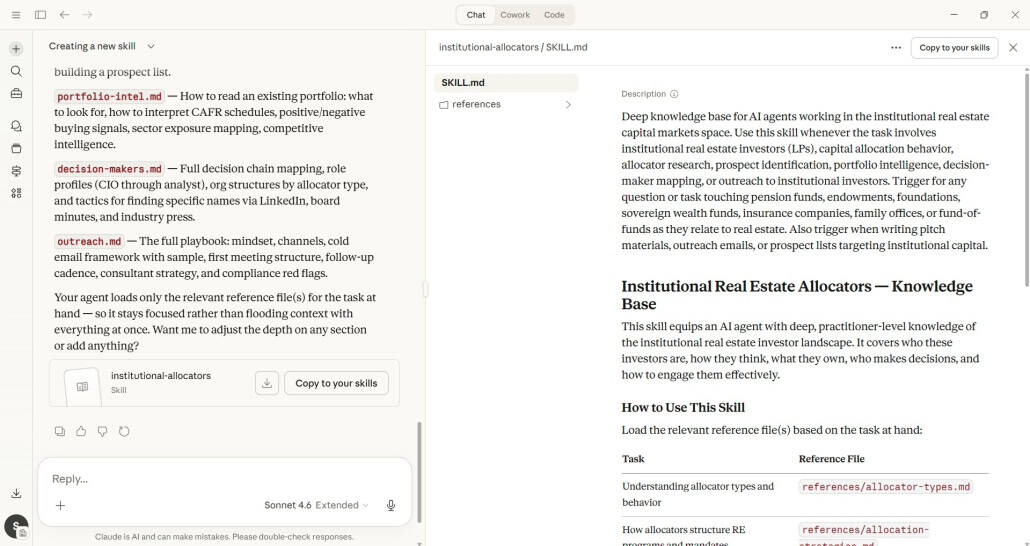
You do not have to start from a blank file — and you certainly don’t have to write the SKILL.md by hand. The fastest way to create a Skill is to work with Claude like you normally would, then promote that interaction into a reusable Skill.
Option 1: Turn existing work into a Skill
- Open Claude and do the task as you usually do.
- Example: Walk Claude through how you want your weekly report written, step by step.
- Once you are happy with how the workflow behaves, tell Claude:
- “Turn this into a Skill.”
- Claude will draft the Skill — the name, the description, and the instructions — based on what you just did.
- Review the draft:
- Make sure the description clearly says when the Skill should be used. This is the field that decides whether it fires.
- Check that the steps match how you want the work done every time.
- Save or copy this into a Skill (more on installing in the next section).
This pattern is powerful: do it once with Claude, then promote it to a Skill.
Option 2: Ask Claude to help you design a Skill from scratch
If you know you want a Skill but have not run the workflow yet:
- Start a new Claude chat.
- Type something like:
- “Help me create a Skill that generates my weekly investor update in my voice.”
- “Help me create a Skill for underwriting a multifamily deal in my standard format.”
- Claude will ask questions about:
- The goal of the Skill
- What inputs it should expect
- The steps it should follow
- How you want the output structured
- Answer those questions in plain language. Claude will assemble the Skill instructions for you.
- When the draft looks right, save or copy it as your Skill.
You do not need to know any special syntax. You just need to be clear about “what good looks like.”
How To Install A Skill In Claude
Once you have a Skill written, you need to install it so Claude can use it.
There are two common paths:
Path 1: “Copy as Skill” from a Claude conversation
If you and Claude have already built the Skill together in a chat:
- Look for the option in that conversation that allows you to save or “Copy as Skill.”
- Click that option.
- Claude will package the instructions as a Skill for you.
- Follow the prompts to add it to your Skills list.
This is the most beginner‑friendly route because Claude handles the packaging.
Path 2: Upload a Skill file from settings
If you have a Skill as a file (for example a folder or ZIP that someone shared with you):
- In Claude, open:
- Settings (or Customize)
- Then go to “Capabilities” or directly to “Skills” / “Customize > Skills” depending on your plan.
- In the Skills section, look for an option like “+” or “Upload a skill.”
- Click it and select your Skill ZIP or folder.
- The Skill will appear in your Skills list.
- Toggle it on so Claude can start using it.
At that point, the Skill is live. You can use it by:
- Letting Claude automatically pick it up when your request matches
- Or explicitly asking: “Use my weekly investor update Skill with this data.”
How To Edit Or Update Your Skills
Your process will evolve, and your Skills should too. You can update them without starting over.
Here is how to do that as a normal user:
- Go to Settings (or Customize) in Claude.
- Navigate to “Capabilities” → “Skills” or directly “Customize > Skills.”
- Find the Skill you want to change.
- You have two routes:
- Edit directly:
- Click on the Skill in the list.
- If Claude allows in‑place editing, adjust the description or instructions right there.
- Save your changes.
- Edit via download:
- In the Skill details, use the option to download the Skill file.
- Drag and drop that file into a new Claude chat.
- Ask Claude: “Help me edit this Skill to do X differently.”
- Work with Claude to update the steps, tone, or structure.
- When you are happy, have Claude re‑package it as a Skill.
- Go back to Settings → Skills and upload the updated version (and disable or delete the old one if needed).
- Edit directly:
This approach lets you treat Skills as living documents that track how your best practices change over time. When you tweak one, remember the description is what tells Claude when to use it — if a Skill stops firing after an edit, that’s the first place to look.
How To Actually Use Your Skills Day To Day
Once a Skill is installed and turned on, Claude can:
- Recognize when your request matches that Skill and use it automatically.
- Or respond when you explicitly ask for it.
Some practical patterns:
- “Use my investor update Skill to draft this week’s email from these notes.”
- “Apply my brand guidelines Skill to rewrite this landing page copy.”
- “Run my underwriting Skill on this new deal package.”
If you do not see the behavior you expect, the cause almost always traces back to the discovery‑and‑activation step we covered earlier:
- Check that the Skill is toggled on in your Skills settings.
- Make sure the Skill’s description clearly states what it is for and when to use it — Claude matches on the description, so a fuzzy one won’t fire reliably.
- Try being explicit: “Use my [Skill name] Skill for this.”
Over time, you will build a small library of Skills that quietly handle your repeat work.
Why It Is Worth Building A Few Great Skills
You do not need 50 Skills. You need a handful of excellent ones that represent your best thinking.
Here is why they are worth the effort:
- You move from “prompting” to “running playbooks.”
- Instead of inventing a new request each time, you say: “Run the investor update Skill with this quarter’s numbers.”
- Your standards are baked in.
- Tone, structure, compliance checks, formatting rules, and edge cases live inside the Skill, not in your memory every time you open a chat.
- You can hand work off more safely.
- A well‑written Skill behaves like a playbook a junior teammate would follow. That makes Claude’s output more predictable and easier to review.
- You get compound returns.
- Each time you refine a Skill, every future use benefits. One hour spent tightening your “Underwrite a multifamily deal” Skill can pay off across dozens of future analyses — and because the format is an open standard, that hour isn’t tied to a single product.
If you already catch yourself typing “I know I told you this before, but…” in AI chats, that is your cue to turn that process into a Skill. Capture it once, install it, and let Claude carry the repetition from there.
Master AI for Commercial Real Estate with AI.Edge
Skills are one piece of a much bigger shift. The CRE professionals who pull ahead over the next few years won’t be the ones who dabble with AI — they’ll be the ones who build real, repeatable AI workflows into how they work every day. That is exactly what AI.Edge by A.CRE was built to teach.
Inside AI.Edge you’ll get hands-on workshops, a growing library of ready-to-use Skills and prompts built for commercial real estate, and a community of practitioners pushing the frontier of AI in CRE. It’s the fastest way to master the AI knowledge you need to thrive in the AI era — not someday, but now.
Frequently Asked Questions about Claude Skills on Desktop and Web
What is a Claude Skill?
A Claude Skill is a saved set of instructions — your process, standards, and preferences — that Claude can run on demand. Under the hood it’s a folder containing a SKILL.md file, which holds a name, a description, and your instructions in plain text. It saves you from re-explaining, re-pasting, or re-teaching the same workflow every time, which translates into more consistency, speed, scale, and focus.
Is this a Claude-only feature?
No. Skills are built on an open standard called Agent Skills, originally developed by Anthropic and now adopted by a growing list of AI tools including Cursor, GitHub Copilot, Gemini CLI, OpenAI Codex, and Claude Code. A Skill you write is a portable file that can travel across products that support the standard, not something locked to one app.
What is a SKILL.md file?
It’s the one required file in a Skill. The top contains a small metadata block — at minimum a name (lowercase letters and hyphens, like investor-update) and a description (what the Skill does and when to use it). Below that is the body: your step-by-step instructions in plain text. No special syntax required.
Why does the description matter so much?
Because of how Skills load. Claude reads only the name and description of each Skill up front, then pulls in the full instructions when a request matches that description. The description is the matchmaker — it decides whether a Skill fires. A specific description (“Use when drafting the weekly investor update from raw deal notes”) triggers reliably; a vague one (“helps with reports”) often won’t.
What is progressive disclosure?
It’s the three-stage way Skills load: discovery (Claude sees only names and descriptions), activation (it reads the full instructions when your request matches), and execution (it opens bundled files only when needed). This is what lets you keep many Skills installed without slowing Claude down.
How do Skills help with repeated work?
Skills let you capture a workflow once and reuse it. Instead of repeating instructions for tasks like newsletters, underwriting, or investor updates, Claude reuses your saved workflow — so you spend more time reviewing results and less time teaching the tool.
What is the easiest way to create one?
Work with Claude like you normally would, then promote that interaction into a Skill. After walking Claude through the task, say “Turn this into a Skill,” and Claude drafts the name, description, and instructions for you. You don’t have to touch the SKILL.md file yourself.
Can I create a Skill from scratch?
Yes. Start a new chat and ask for help — for example, “Help me create a Skill that generates my weekly investor update in my voice.” Claude will ask about the goal of the Skill, what inputs it should expect, the steps it should follow, and how you want the output structured. You don’t need to know any special syntax; you just need to be clear about what good looks like.
How do I install a Skill from a chat?
If the Skill was built in a conversation, look for an option to save or “Copy as Skill.” Claude packages the instructions for you, then you follow the prompts to add it to your Skills list.
How do I upload a Skill manually?
Open Settings (or Customize), go to “Capabilities” or directly to “Skills” / “Customize > Skills” depending on your plan, look for “+” or “Upload a skill,” select your Skill ZIP or folder, and toggle it on so Claude can start using it.
How do I edit or update a Skill?
Either edit directly in the Skills area (click the Skill, adjust the description or instructions if in-place editing is available, save) or edit via download (download the file, drop it into a new Claude chat, ask Claude to revise it, then re-upload the updated version and disable or delete the old one). If a Skill stops firing after an edit, check the description first.
How are Skills used day to day?
Once a Skill is installed and turned on, Claude can recognize when your request matches that Skill and use it automatically, or respond when you explicitly ask for it. Example prompts include: “Use my investor update Skill to draft this week’s email from these notes” and “Run my underwriting Skill on this new deal package.”
What should I do if a Skill does not trigger?
Three checks: confirm the Skill is toggled on, make sure its description clearly states what it’s for and when to use it (Claude matches on the description, so a fuzzy one won’t fire), and try being explicit — “Use my [Skill name] Skill for this.”
Why build only a few strong Skills?
You don’t need 50 — you need a handful of excellent ones that represent your best thinking. Strong Skills move you from prompting to running playbooks, bake your standards in, make handoffs safer, and compound over time. And because the format is an open standard, that effort isn’t tied to a single product.