

• Link to Facebook
  • Link to Youtube
  • Link to LinkedIn
  • Link to X
  • Link to Tiktok
  • Link to Instagram
  • EN ESPAÑOL
    • Inicio
    • Glosario de Términos
    • Modelos Financieros
    • Tutoriales Cortos
  • A.CRE HELP
    • Support Section
    • Contact Us
  • LOGIN/REGISTER
  • Shopping Cart Shopping Cart
    0Shopping Cart
Adventures in CRE
  • A.CRE
    • A.CRE Home
    • A.CRE Help
    • Accelerator
      • Learn More
      • Login
    • AI.Edge
      • Learn More
      • Login
    • Artificial Intelligence
    • Careers
    • CRE Event Calendar
    • CRE Job Board
    • Education
    • Library of Excel Models
    • Meet the A.CRE Team
  • RE Modeling
    • 1031 Exchange
    • Audio Series
    • All-in-One (Ai1) Model
      • Download
      • Guides and Tutorials
      • Support
    • Ask Me Anything (Live)
    • Beginner’s Guide to Excel
    • Excel Models
      • Excel Add-ins
      • Library of Excel Models
      • All-in-One (Ai1) Model
      • Apartment
      • Condo
      • Debt
      • Development
      • Equity Waterfall
      • Hotel
      • Industrial
      • Office
      • Portfolio
      • Retail
      • Single Family
      • Tutorial
    • Excel Tips
    • Practice Library of Case Studies
    • Stochastic Modeling
    • Argus
    • My Downloads / My Account
  • Careers
    • About Careers in Real Estate
    • Ask Me Anything (Live)
    • Audio Series
    • Compensation in Real Estate
    • CRE Job Board
      • Find a Job
        • Browse Jobs
        • Post a Resume
        • Register
        • Login
      • Post a Job
    • CRE Event Calendar
    • CRE Interviews
    • Day in the Life Series
    • Real Estate Legal Content
    • What CRE Pros Do
  • Education
    • Accelerator
    • AI.Edge
    • A.CRE 101
    • Ask Me Anything (Live)
    • A.CRE Audio Series
    • Audio Series
    • Book Reviews
    • CRE Event Calendar
    • Deep Dive Series
    • Glossary of CRE Terms
    • Real Estate Legal Content
    • Real Estate Clubs
    • University Profiles
    • Watch Me Build
  • AI
    • AI Skills
    • AI Use Cases in CRE
    • AI for CRE Training
    • AI Tools for CRE
    • AI.Edge Membership
      • Learn More
      • Login
  • Accelerator
    • Accelerator Reviews
    • Accelerator Story
    • Enroll Now
    • Learn More
    • See What’s New
    • Enterprise Members Only
      • General Enterprise Login
      • ICSC Login
      • M&M Login
    • Members Only
      • Extend/Renew Membership
      • Login
      • Manage Membership
  • My Downloads
    • View My Downloads
    • Find an Excel Model
    • Register
    • Login
  • Click to open the search input field Click to open the search input field Search
  • Menu Menu
You are here: Home1 / Real Estate Financial Modeling2 / Excel Models3 / A.CRE All-in-One (Ai1) Model4 / Quick Tutorial: Add Line Items to OpSt Sheet in All-in-One
Spencer Burton
A.CRE All-in-One (Ai1) Model, Ai1 Tutorials

Quick Tutorial: Add Line Items to OpSt Sheet in All-in-One

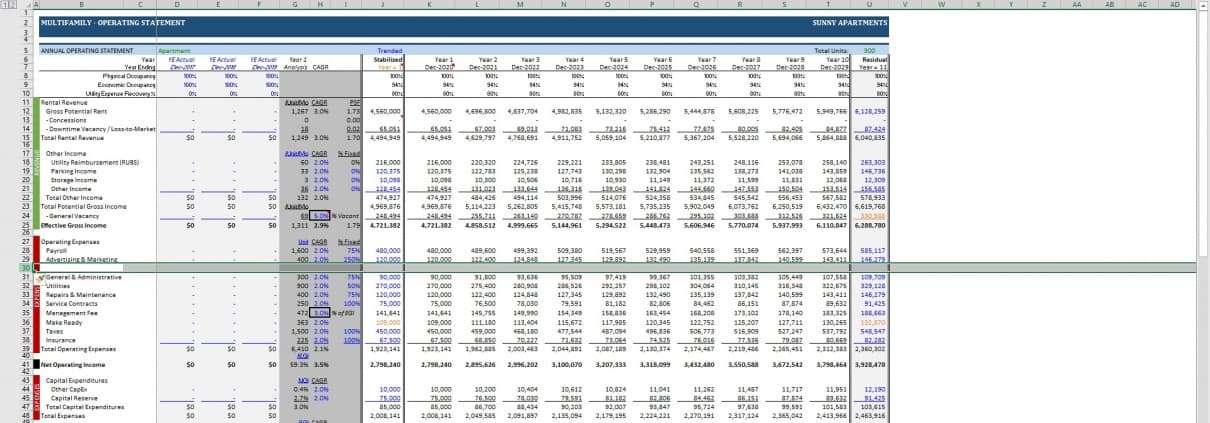
I was recently asked the question whether it’s possible to add more other income or operating expense line items to the MF-OpSt or ORI-OpSt worksheets in my All-in-One Model for Underwriting Acquisitions and Development. Short answer is: out of the box this is not supported. Or in other words, there’s not a button you can press that will do this for you automatically.

However, with a little manual work on your part it is possible to add new line items. Now it’s important to follow a few steps in a certain order so that the SUM (i.e Total) rows continue to work correctly and the new line items flow through to the DCF. But if done right, it’s a 20 second process that allows you to further customize the model to meet your specific needs.
add line items All-in-One model

Steps to Follow to Add Line Items to the OpSt Tab

So there are a few steps to follow and nuances to keep in mind when you’re doing this. I’ll follow up these steps with a short video showing you how to do this. First the steps:

  1. Go to either the ORI-OpSt or MF-OpSt tab.
  2. Find the annual operating statement section of the worksheet.
  3. Choose whether you’d like to add an Other Income or Operating Expense line item.
  4. Within the annual section (e.g. annual Other Income) where you want the new line item, insert a new row. Make sure the row is in the middle of the section, not at the top or bottom.
  5. Find the exact same place within the monthly section (e.g. monthly Other Income) and insert another row.
  6. Copy the row either immediately above or below the newly inserted row and paste the copied contents into the newly inserted row.
  7. Do the same within the annual section, copying and pasting the row either immediately above or below the newly inserted row.
  8. Rename the newly inserted line item.
  9. Confirm the formulas are working properly.
  10. With your new line item added, you should be ready to go.

Now here are a few pitfalls and things to keep in mind when doing this:

  1. Make sure to insert rows within the middle of the section where you’re adding a line item. If you insert a line item at the top or bottom of the section, the formula within the SUM (i.e. Total) row may not capture the newly added line item.
  2. Make sure when you copy a row to paste to the newly inserted line item row, that the row you copy a) is immediately above or below the newly inserted row, and b) contains the same formula types and formatting as a standard other income or operating expense line item. In other words, don’t copy the ‘Management Fee’ or ‘Make Ready’ rows as they use formulas different from the standard.
  3. Error check before you’re done. This is important. Confirm that the total row is working properly, and that the total amount is flowing through correctly to the Property CF tab.
  4. Remember that the MF Settings and ORI Settings tabs will not contain the newly added line items. This won’t impact the cash flows, but it does mean if you decide to alter the OpSt tab using the Settings tab at some point, you’ll won’t be able to update the manually added line items from the Settings tab.

Quick Video Tutorial – Adding Line Items

Now that I’ve laid out the steps and potential pitfalls, allow me to quickly show you how to do this. If you have more questions, please don’t hesitate to ask in the All-in-One Support Forum.


Frequently Asked Questions about Adding Line Items to the OpSt Sheet in the All-in-One Model

Is it possible to add more line items to the MF-OpSt or ORI-OpSt worksheets?

Out of the box, the model does not support adding new line items automatically. However, with a few manual steps, it is possible to add other income or operating expense line items effectively.

Where should I insert a new line item in the OpSt tab?

Insert the new row in the middle of the section (e.g. annual Other Income or monthly Operating Expenses). Avoid inserting at the top or bottom, as the SUM formulas may not capture the new item.

How do I make sure the formulas work for the new row?

Copy the row immediately above or below the newly inserted one, and paste it into the new row. Do this for both the monthly and annual sections. This ensures formulas and formatting remain consistent.

Can I copy formulas from any row to create the new line item?

No. Only copy from rows that are standard income or expense items. Do not copy rows like ‘Management Fee’ or ‘Make Ready’ as they use custom formulas and may disrupt the logic.

Will the new line items appear in the Settings tab?

No. The MF Settings and ORI Settings tabs do not reflect manually added line items. While this won’t affect the cash flows, you won’t be able to edit the new line items from the Settings tabs.

What should I do after adding the new line item?

Perform an error check. Confirm that the total (SUM) rows update correctly and that the new values flow properly through to the Property CF tab.

Is there a video tutorial to help with this process?

Yes. A short video is included in the original post to visually guide you through the steps of adding new line items to the OpSt tab.


About the Author: Spencer Burton is Co-Founder and CEO of CRE Agents, an AI-powered platform training digital coworkers for commercial real estate. He has 20+ years of CRE experience and has underwritten over $30 billion in real estate across top institutional firms.

Spencer also co-founded Adventures in CRE, served as President at Stablewood, and holds a BS in International Affairs from Florida State University and a Masters in Real Estate Finance from Cornell University.

Contact Spencer
by Spencer Burton
Share this entry
  • Share on X
  • Share on LinkedIn
  • Share by Mail
  • Link to Instagram
  • Link to Youtube
https://www.adventuresincre.com/wp-content/uploads/2019/02/Insert-Line-Item-OpSt.jpg 1003 1919 Spencer Burton https://adventuresincre.com/wp-content/uploads/2022/04/logo-transparent-black-e1649023554691.png Spencer Burton2019-02-10 19:31:332025-07-17 18:47:36Quick Tutorial: Add Line Items to OpSt Sheet in All-in-One

Featured Content

  • RE Financial Modeling Accelerator
  • A.CRE Job Search
  • Library of Real Estate Excel Models
  • Real Estate Financial Modeling
  • Real Estate Education
  • Real Estate Careers
  • AI in Real Estate

Recent Posts

  • AI Tools for Commercial Real Estate (Summer 2026 Edition)
  • The 2008 Financial Crisis, From the Ground Up: Why We Believed Houses Were Safe
  • Real Estate Equity Waterfall Model – IRR and Equity Multiple Hurdles (Updated June 2026)
  • A.CRE Self Storage Development Model (Updated June 2026)
  • Episode 12 of Multipliers: Ask Why Until the Answer Changes
Accelerator - Learn More

Search Adventures in CRE

Search Search

Have a Question or Need Help?

Visit our Help Section

Contact Adventures in CRE

  • Visit A.CRE Help
  • Via Email
  • Via LinkedIn

You Might Also Like

  • Real Estate Modeling Courses
  • Real Estate Financial Modeling
  • A.CRE Job Board
  • Careers in Commercial Real Estate
  • Real Estate Education

A.CRE Library of Excel Models

  • Browse Excel Models
  • Login/Register
  • View My Downloads
  • Edit Account Details

Terms, Policies, and Disclaimer

  • Privacy Policy
  • Cookie Policy
  • AI Usage Policy
  • Terms of Use
  • Disclaimer
© 2014 - Present - Copyright - www.AdventuresinCRE.com, LLC | Adventures in CRE | A.CRE
  • Link to Facebook
  • Link to Youtube
  • Link to LinkedIn
  • Link to X
  • Link to Tiktok
  • Link to Instagram
Link to: Deep Dive: Understanding Acquisitions: The Letter of Intent (LOI) Link to: Deep Dive: Understanding Acquisitions: The Letter of Intent (LOI) Deep Dive: Understanding Acquisitions: The Letter of Intent (LOI) Link to: Create a Dynamic Real Estate Chart in Excel Link to: Create a Dynamic Real Estate Chart in Excel Create a Dynamic Real Estate Chart in Excel
Scroll to top Scroll to top Scroll to top