
Microsoft has blocked the macros in my A.CRE model – What now?
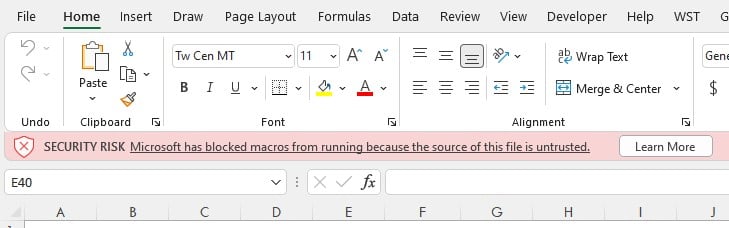
When downloading and opening an Excel model from A.CRE, some users may get the ominous message: “Microsoft has blocked macros from running because the source of this file is untrusted.” If you’ve received this message, you’re probably asking, “Why did this message appear, and can I use the file without macros?”
In this tutorial, I’ll share why this message appears, why you can safely enable macros in our Excel models, and how to enable macros when using an A.CRE Excel model.
A bit of background on Excel Macros
First off, we assure you that you can enable Macros in our models with confidence. We use Macros in our Excel models to improve the user experience, speed up the models in cases where there are circular references, and to handle various real estate modeling tasks (e.g. calculating reserve accounts) that Excel out-of-the-box can’t. We certainly wouldn’t write malicious code into our macros, and the code for all macros in our Excel models is openly available for any user to view.
Sometime in late 2021/early 2022, Microsoft released an updated version of Microsoft Excel that includes greater security protection related to Excel Macros. This update is meant to protect Excel users from downloading files from the internet that contain malicious macros. Unfortunately, in their zeal to protect Excel users from bad actors, they’ve made using A.CRE models a bit more difficult.
- View more details on Microsoft’s website here
Can I use an A.CRE Model without enabling macros?
Unfortunately, the A.CRE Models that we’ve built with macros won’t function properly unless you enable the macros. Therefore, you will need to enable the macros in order to use the models. Below, we’ve recorded a video and shared instructions (from Microsoft’s website) on how to enable macros in models downloaded from A.CRE.
How to enable macros in models downloaded from A.CRE – Video Tutorial
In this short video, I show you the steps to enable macros when you get the message, “Microsoft has blocked macros from running because the source of this file is untrusted.”
How to enable macros in models downloaded from A.CRE – Written Tutorial
Allow me to share the written steps for enabling macros when you receive the message “Microsoft has blocked macros from running because the source of this file is untrusted.”
- Download and save the Excel model (i.e. Excel file) to a local hard drive, network share, or cloud share drive.
- Open Windows File Explorer and go to the folder where you saved the file.
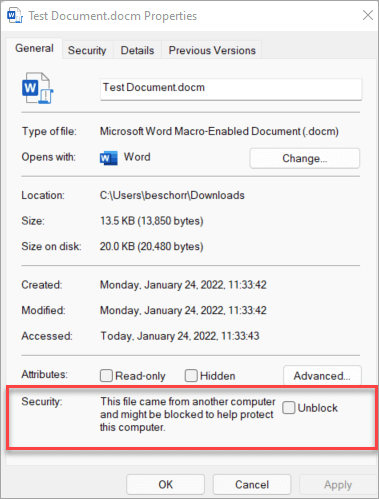
- Right-click the file and choose Properties from the context menu.
- At the bottom of the General tab, you should see a section for Security. Select the Unblock checkbox and select OK.
- Open the file and click ‘Enable Content’
(Click here to read more about how Microsoft Excel blocks Macros and how to enable them)
Not seeing the “Unblock” checkbox?
If the Unblock checkbox doesn’t appear under the file’s Properties, it usually means Windows hasn’t flagged the file as risky—so there’s nothing to unblock. In that case, just open the file and click Enable Content in the yellow security bar, and you’re good to go.
If you don’t see the yellow bar either, Excel may be blocking macros silently due to your macro security settings. To fix this, go to:
Excel > Options > Trust Center > Trust Center Settings > Macro Settings
Then select “Disable VBA macros with notification” and click OK.
This will prompt Excel to show the yellow security bar again so you can manually enable macros for files you trust—like ours 😉.
Still Having Issues?
Is this not the specific issue you’re having? If not, please check out the A.CRE help section for more troubleshooting tutorials.
Frequently Asked Questions about Microsoft Blocking Macros in A.CRE Excel Models
Why is Microsoft blocking macros in A.CRE Excel models?
Microsoft updated Excel security in 2021/2022 to block macros in files downloaded from the internet to prevent malicious code. As a result, files like A.CRE’s downloadable models may be flagged as untrusted—even though they are safe.
Can I use an A.CRE Excel model without enabling macros?
No. Many A.CRE models depend on macros for functionality, such as calculating reserves or speeding up calculations. The model will not function properly unless macros are enabled.
How do I unblock macros in a downloaded Excel file?
Download and save the file to a local or network drive.
Right-click the file and choose “Properties.”
On the “General” tab, check the box next to “Unblock” at the bottom.
Click OK.
Open the file and click “Enable Content.”
What if I don’t see the “Unblock” checkbox in Properties?
If “Unblock” doesn’t appear, Windows hasn’t flagged the file as risky. You can simply open the file and click “Enable Content” in the yellow security bar—if the bar appears.
What if I don’t see a yellow security bar either?
Go to Excel > Options > Trust Center > Trust Center Settings > Macro Settings
Then select: “Disable VBA macros with notification”
Click OK. This will allow the yellow bar to appear when you open the file, so you can manually enable macros.
Are macros in A.CRE models safe to enable?
Yes. The macros in A.CRE models are safe and used only to improve user experience and enhance model functionality. All code is openly available for user inspection and does not contain malicious instructions.
Where can I find a tutorial for enabling macros?
A.CRE provides both a video and written tutorial on how to unblock and enable macros when using their models. These are included in the original post and linked on the A.CRE help section.
What should I do if I still have issues enabling macros?
If the steps above don’t resolve your issue, visit the A.CRE help section for additional troubleshooting resources or contact their support team directly.